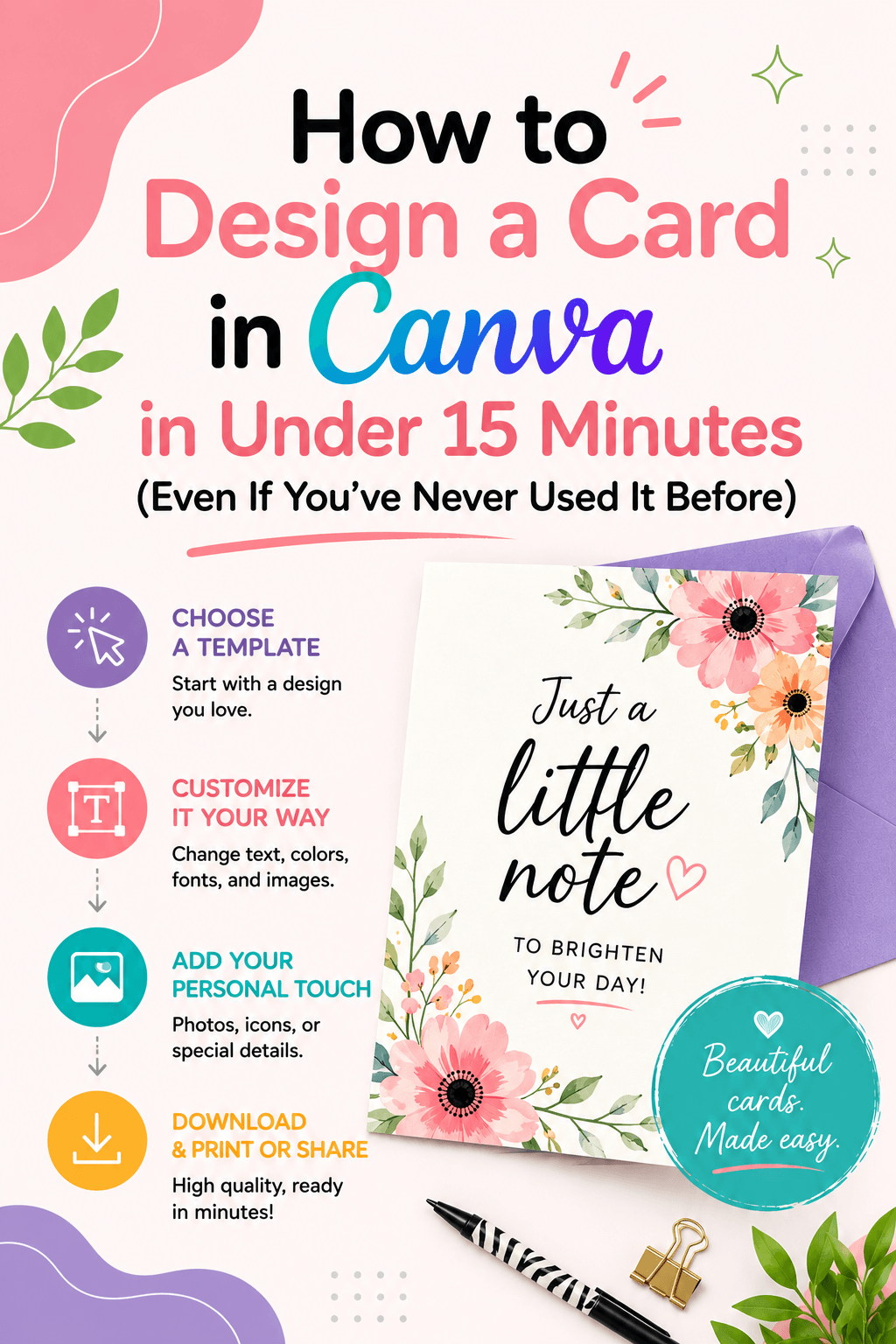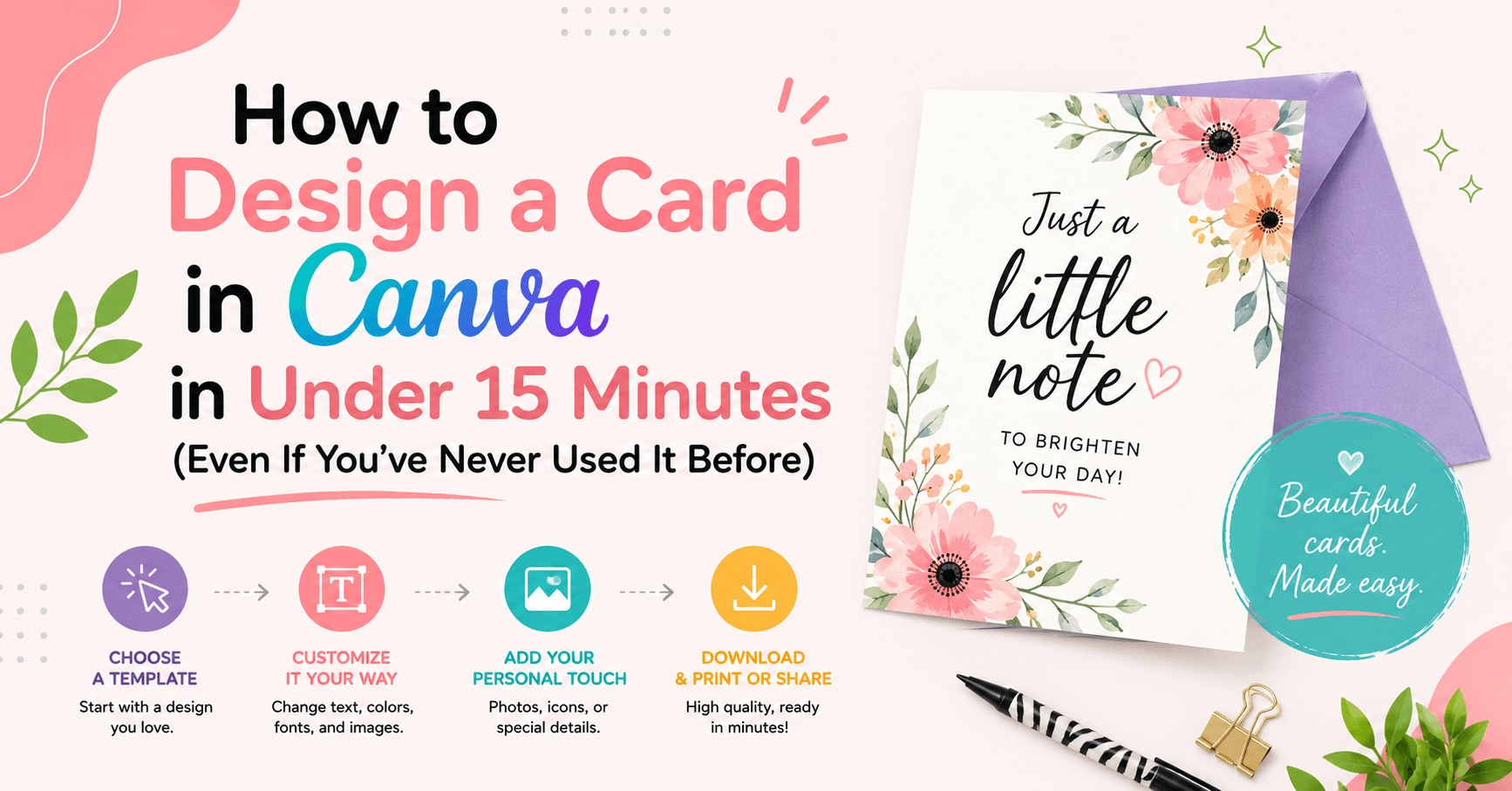
A store-bought card costs $7 and says exactly what every other card says. A Canva card takes 15 minutes and says something only you could say.
That's the whole argument, really. Canva has made it possible for anyone — regardless of design experience, regardless of artistic skill — to produce a card that feels genuinely personal and genuinely beautiful. You don't need to know how fonts work. You don't need to understand color theory. You don't need any prior experience at all.
You just need fifteen minutes and a reason to send something.
"There's something the HobbyScool community understands intuitively: a card you made yourself carries something a purchased one never quite can. Even when it's made with a digital template — the choosing, the personalizing, the printing — that's all you."
— Destini Copp, Founder, HobbyScoolWhat Canva Is — And Why It Works for Card Making
Canva is a browser-based design tool — it runs in any web browser on any device, no download required. You start with a template that's already been designed by a professional, then customize it: change the text, swap the colors, add a photo, adjust the layout. The result looks intentional and polished because the underlying design is already strong.
Card making is one of the things Canva does best. The template library includes thousands of birthday invitations, holiday cards, thank-you cards, seasonal greetings, and more. Starting from a strong template dramatically lowers the barrier to making something you're genuinely proud of.
What You Can Make (And the Right Size for Each)
🎂 Birthday Invitation
Classic printed invite with name, date, location, and RSVP details. Clean, festive, completely custom.
Best size: 5×7 in (portrait)☀️ Summer Greeting Card
A warm seasonal card to send to friends and family — or to print and pop in the mail just because.
Best size: 5×7 in or 4×6 in📱 Digital Invite
Designed to share via text, email, or social. No printing required. Works beautifully for casual summer gatherings.
Best size: 1080×1080 px (square)🌸 Thank-You Card
Simple, elegant, personal. So much more meaningful than a generic store card — and faster to make than you'd expect.
Best size: 5×7 in or A2 (4.25×5.5 in)How to Design a Card in Canva: Step by Step
Open Canva and set your size
Go to canva.com and click "Create a design." Select a pre-set like "Card" or click "Custom size" and type in your dimensions — 5×7 in for a standard printed card. This sets your canvas before you search for templates.
Search for a template that fits the mood
Click "Templates" in the left sidebar and search for something specific: "birthday invitation floral," "summer party invite," "simple thank you card." Scroll until something catches your eye. You're not committing — you can switch templates at any point.
Swap the text for yours
Click any text element to select it, then type to replace it. Name, date, location, time — whatever your card needs. Canva keeps your text in the same font and style as the template; you're just replacing the words.
Adjust colors to match your vision
Click a colored element, then click the color swatch in the top toolbar to change it. Try adjusting the background, the main heading, or an accent element. Even small color tweaks make the design feel distinctly yours.
Add a photo — optional but lovely
Click "Uploads" in the left sidebar and drag in a photo from your device. Many card templates have a photo placeholder ready — just drop your image in and it crops automatically. Resize and reposition by dragging the corners.
Download and print
Click "Share" in the top right, then "Download." For printing at home, choose PDF (Print) for the sharpest result. For digital sharing, PNG works perfectly. Print on cardstock — 65lb or heavier — for a proper card feel. Trim with a paper cutter for clean edges.
When you're picking a template, look for one where the basic layout and font pairing already feel right — not one that's close but needs significant rearranging. Canva's strength is in customizing the details of a strong design. Choose a template you already like 80% of, and the rest takes care of itself.
Mistakes That Make Cards Look Amateur (And How to Avoid Them)
Using too many fonts
Most beautiful card designs use two fonts at most — one for headings, one for body text. The templates already handle this. Resist adding a third or fourth font; more fonts almost always means less cohesion.
Overcrowding the design
White space is a design tool. Cards that feel calm and elegant have breathing room. If you find yourself adding more and more elements, stop and remove one instead. Less is almost always better in card design.
Skipping the print preview
Before downloading, zoom out and look at your card as a whole. Check that nothing is cut off near the edges, and that text is readable at the actual size. Print a draft on regular paper before committing to cardstock, especially for invitations.
See It Done Live This July
If you want someone to walk you through the whole process in real time — including design decisions, font choices, and the full export workflow — the HobbyScool Creative Tech Summer Retreat (July 21–23, 2026) includes two Canva card workshops.
From Blank Page to Beautiful: Create a Custom Birthday Invitation in Canva in Under 15 Minutes covers exactly the process outlined here, with an educator guiding you through every step. The Invite That Starts the Party: A Step-by-Step Summer Card You Can Make Today takes a seasonal approach — a summer card you complete during the workshop session itself.
Both are free. Both are beginner-friendly. Both leave you with a finished card and the confidence to make as many more as you want.
Join Us at the Creative Tech Summer Retreat
Two live card-making workshops, plus sessions on Cricut, Procreate, Illustrator, and AI tools. Free to attend. Start with nothing. Leave with something beautiful.
Reserve My Free Spot 🎨Frequently Asked Questions
Yes — Canva is specifically designed for people without graphic design training. You start with a template that is already professionally laid out, then customize the text, colors, and images to make it your own. Most beginners can produce a finished, print-ready card in their first session, often in under 15 minutes.
For a standard printed birthday card, use 5x7 inches in portrait orientation. For a flat invitation to print at home, 5x7 or 4x6 inches both work well. For a digital invitation to send by email or text, an Instagram post size of 1080x1080px is readable and shareable on any device. Canva lets you set a custom size when you start a new design.
Download your finished Canva design as a PDF Print file for the best print quality. Use cardstock paper at 65lb or heavier for a sturdy card feel. Print at actual size rather than scaling to fit. Trim with a paper cutter rather than scissors for clean, professional edges.
The HobbyScool Creative Tech Summer Retreat (July 21–23, 2026) includes two Canva workshops: From Blank Page to Beautiful: Create a Custom Birthday Invitation in Canva in Under 15 Minutes, and The Invite That Starts the Party: A Step-by-Step Summer Card You Can Make Today. Both are beginner-friendly and free to attend.
Canva has a free tier that includes thousands of card and invitation templates, basic design tools, and the ability to download finished designs as PNG or PDF files. A Canva Pro subscription unlocks additional premium templates and a larger photo library, but the free tier is more than enough for designing beautiful cards and invitations.